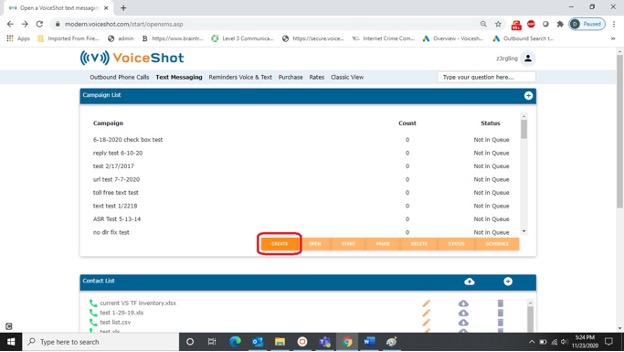
Click on TEXT MESSAGING in the blue menu bar to go to the text messaging control panel.
Click on the orange CREATE button to start creating your campaign.
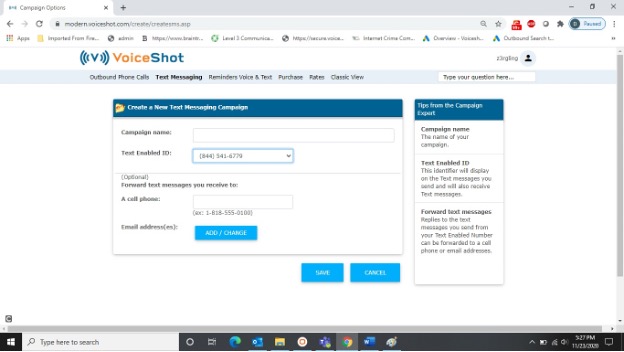
Name your campaign, choose your text enabled number, and set forwarding for replies if desired.
TIP: Using the ADD/CHANGE button takes you to a screen to input an email address to forward replies to.
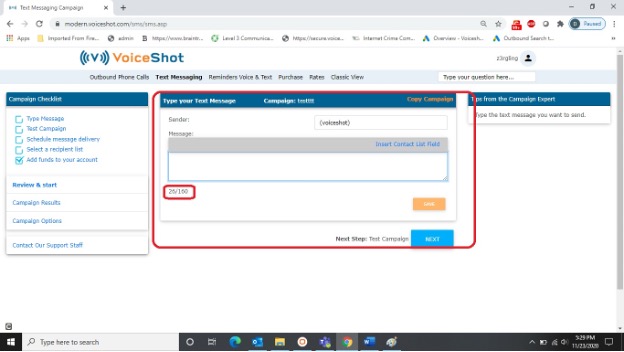
Type in your message. The character limit for an SMS message is 160 characters. When typing your message, you can see the character count in the bottom left corner of the screen.
Test your campaign by sending a test message to your own phone.
NOTE: If you do NOT have an enabled text messaging plan, you will be required to verify the number you wish to send the test message to. An onscreen prompt will appear with directions.
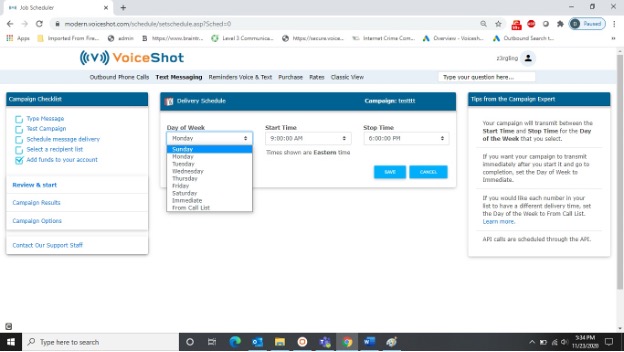
Schedule when you want your messages to go out. Messages can be set to go out immediately or as far in advance as 6 days.
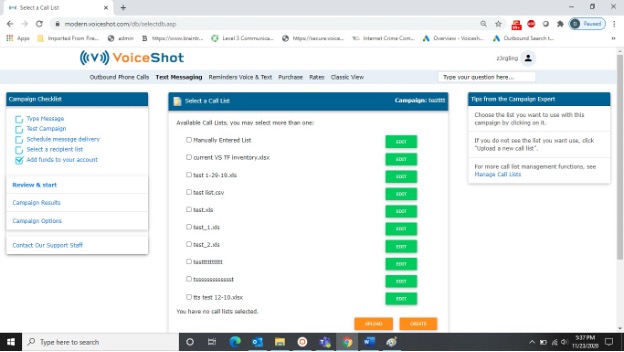
Select a list in your account to send the messages to, create a list manually, or upload a list from your computer.
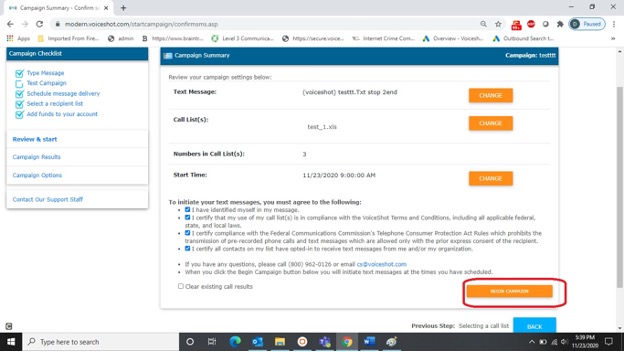
Verify your settings and launch your campaign.
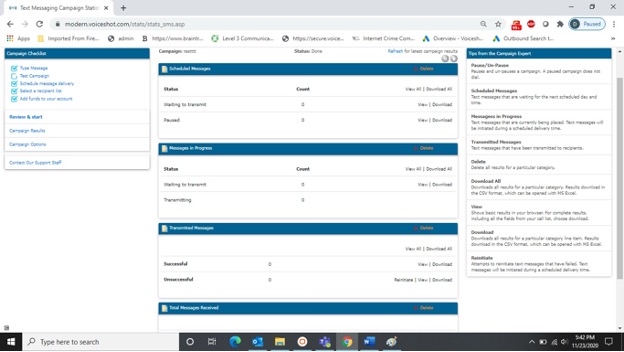
Check the status of your campaign. If your campaign is open, go to the CAMPAIGN RESULTS link on the Campaign Checklist to see what messages made it to the carrier, which failed, and why. On this page you can also view any replies to your text messages.