Recording Sound Files
There are 3 ways to create sound files for use in your campaigns:
1. Creating Voice Message with the VoiceShot Dial-In Service
You will need to know your PIN number.
From your telephone, dial the VoiceShot Dial-In Service at 888-597-7859 or 818-591-0775.
Enter your PIN at the prompt.
Follow the instructions given to you by the dial in service.
When you have finished recording your sound file, the dial-in service will assign your sound file a filename and tell you the filename is has assigned. Write the filename on the VOICESHOT SCRIPT WORKSHEET. You will need this filename when you create your voice campaign.
2. Creating Voice Messages with the VoiceShot Recorder TM
To use the VoiceShot Recorder, your computer must meet the following requirements:
-
- Running Windows® 2000, XP or Windows 7
- Sound Card
- Speakers
- Microphone
If you have not already done so, download the VoiceShot Recorder.
Save the VoiceShot Recorder on your desktop.
Start the recorder:
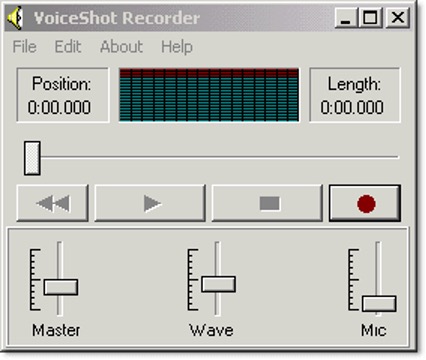
Begin recording your voice message by pressing the RECORD button and speaking into your mic.
When you are finished recording, press the STOP button.
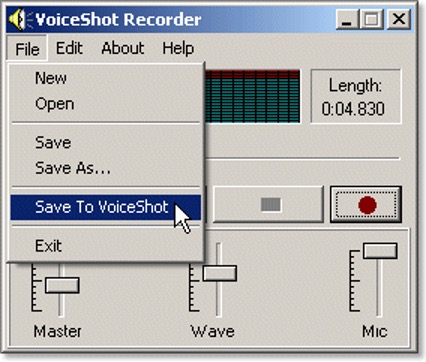
You can playback your voice message by pressing the play button. When you are satisfied with your message, click FILE then SAVE TO VOICESHOT.
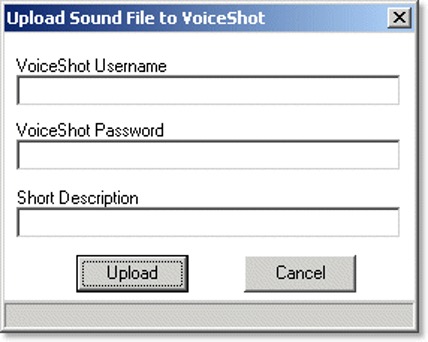
Type in your account's username and password as well as a description for your voice message, then click on the UPLOAD button to upload your message to your VoiceShot account.
OPTIONAL: You can use the VoiceShot Recorder's editing functions to remove such things as excessive silence at the beginning or end of your voice message. Move the position slider to a point in your message the silence begins (or ends) and choose either DELETE BEFORE CURRENT POSITION (or DELETE AFTER CURRENT POSITION) depending on what you would like to do.
You can also save a copy of your message on your computer, click FILE then SAVE and type a file name for your voice message and click the SAVE button.
3. Creating Voice Messages with Windows® Sound Recorder
If you are going to use your sound file in an outbound phone call, to be compliant with the VoiceShot Terms of Service you must identify yourself at the beginning of your message and during your message you must provide your phone number.
To use the Windows® Sound Recorder, your computer must meet the following requirements:
-
- Running Windows® 95, 98, ME, NT, 2000 or XP
- Sound Card
- Speakers
- Microphone
- Windows® Sound Recorder installed
Start Sound Recorder:
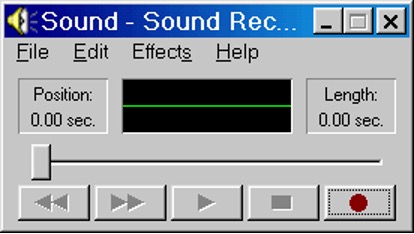
Click FILE, PROPERTIES and then the CONVERT NOW button on the Properties for Sound screen. On the next screen set the Format and Attributes to the following values:
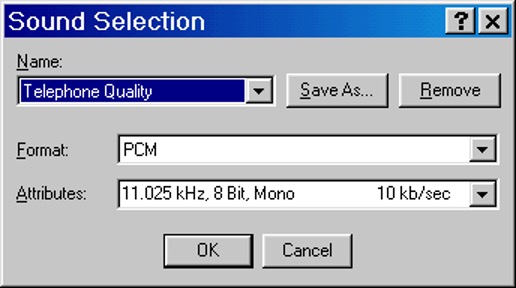
Then click OK and click OK once again to the Properties for Sound screen. This must be done every time immediately before you record a new voice message with Sound Recorder for use with VoiceShot.
You can playback your voice message by pressing the play button. When you are satisfied with your message, click FILE then SAVE and type a file name for your voice message and click the SAVE button.
OPTIONAL: You can use the Sound Recorders's editing functions to remove such things as excessive silence at the beginning or end of your voice message. Move the position slider to a point in your message the silence begins (or ends) and choose either DELETE BEFORE CURRENT POSITION (or DELETE AFTER CURRENT POSITION) depending on what you would like to do.