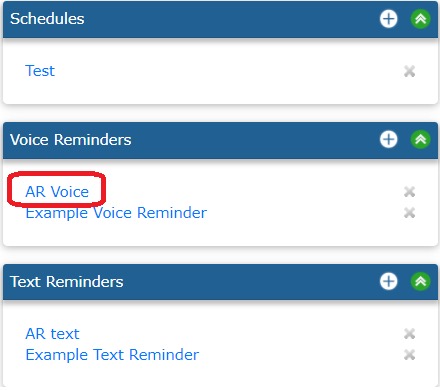
To edit a Voice Reminder or to add key press functionality, click on the Voice Reminder Name in the Voice Reminders box.
To edit a Text Reminder, the process is the same, but instead of the design screen, you will be brought to a page to edit your message.
Example of a Voice Reminder Name to Select
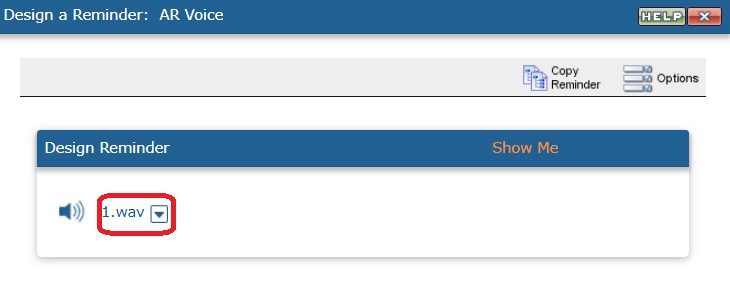
You will be brought to the design screen which will show your sound file. Click on the main sound file to bring up the menu of options. See screenshot below.
Example of a Menu
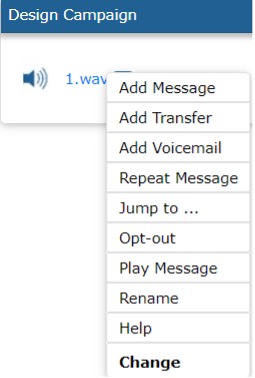
Key Options of the Menu
Add Message
A message is a sound file that plays when an event that you select takes place. For example, a message can be played when a call recipient makes a selection from their telephone keypad or if they take no action at all.
To add a message, follow these steps:
- Click the Add Message.
- Select a key press under While listening to.
- Select a sound file, under Play sound file.
- Click Save.
Add Transfer
A transfer connects the call recipient to another phone number. While the transfer is taking place, the call recipient hears music or a message on hold that you can change. A transfer can take place when a call recipient makes a selection from their telephone keypad or if they take no action at all.
To add a transfer, follow these steps:
- Click Add Transfer.
- Select a key press under While listening to.
- Enter a phone number to transfer to, under Transfer to this number.
- Click Save.
Repeat Message
Repeat message will allow you to specify a keypress to have your message repeated.
To add "repeat message", follow these steps:
- Click the Repeat message
- Select a key press under While listening to.
- Click Save.
Jump To
Jump to sends a call recipient to a different part of your campaign. A jump can take place when a call recipient makes a selection from their telephone keypad or if they take no action at all. For example, Jump to can be used to replay a message to a call recipient.
More information: Jumping to a message is different than adding a new message. Adding a message creates a new direction for the call to take. Jumping to a message takes a call recipient to a point in your campaign that you have already created.
To add Jump To, follow these steps:
- Click the Jump to.
- Select a key press under While listening to.
- Select an existing message, under Jump to.
- Click Save.
Opt-Out
To add Jump To, follow these steps:
- Click the Opt-out.
- Select a key press under While listening to.
- Click Save.
Change
All of the elements of a campaign -- messages, transfers, voice mail, jumps -- have a set of options associated with each of them. These options all you to customize a campaign's behavior to best suit your needs.
To modify a campaign element, follow these steps:
- Click an existing element.
- Click Change.
- Make necessary changes.
- Click Save.