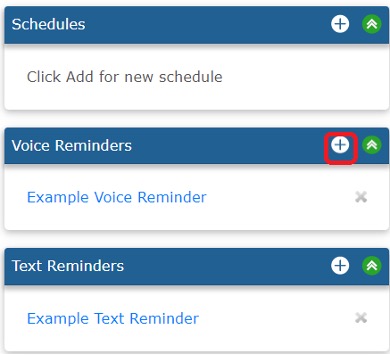
To create a new Voice Reminder, click the PLUS button in the Voice Reminders box.
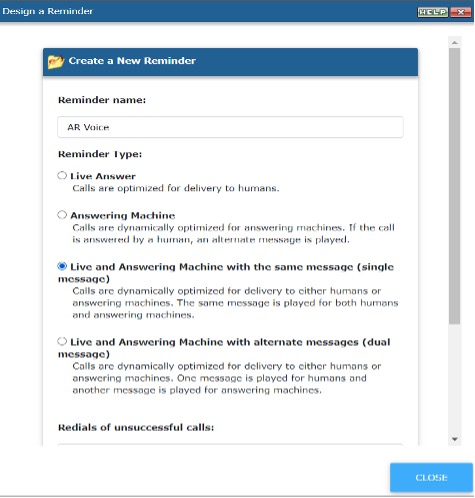
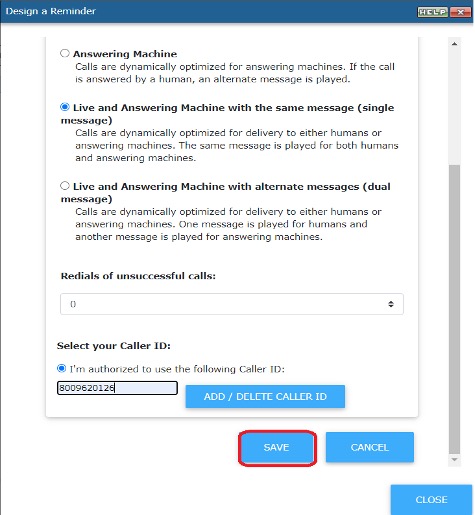
On the next screen, you will name the reminder, set reminder type, set redial preference and authorize a phone number to use as caller ID. Click on ADD / DELETE CALLER ID and follow the instructions to authorize your number. Click on SAVE as outline in red once finished.
The next page will give you instructions to use our dial in recording option. If you record using this method, the recording will be saved as a numbed WAV file. You will be able to select the recording on the next screen (see screenshot below). If you wish to use text to speech or upload a recording, you will see that option as well.
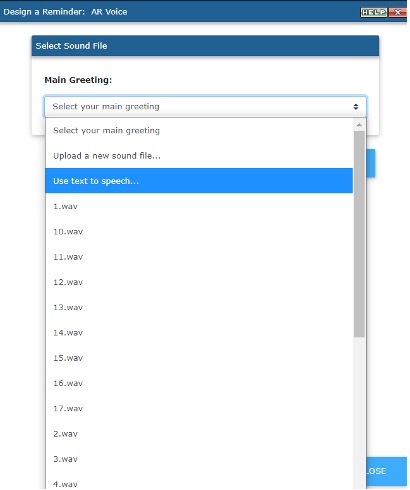
If you use text to speech, you will be able to insert variables into your message such as the date and time of the appointment. See screenshot below ( outlined in red)
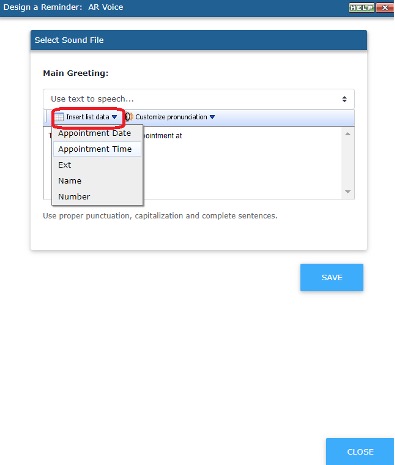
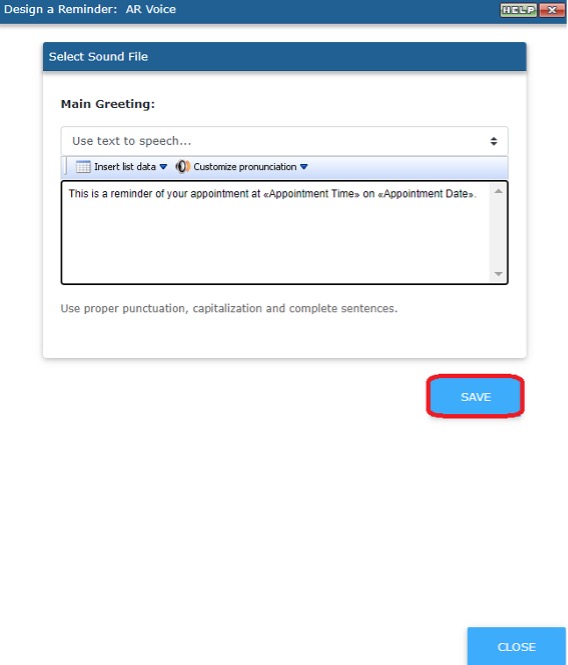
See screenshot example below. Once finished, click SAVE as outlined in red.
NOTE: See help section on Editing reminder(s) and adding key press functionality to add campaign elements.